All case studies

Product design · B2B audio SaaS

Space web app: the control room behind every conversation.

Space lets companies put live audio on their own website. The widget is what visitors see. The web app is where the company’s team signs up, installs the widget, creates and hosts audio rooms, takes 1:1 calls with customers and looks back at who joined. We designed it end to end.
Client
Space
Product
Web app for admins and team members
Type
Product design
Flows
Setup · Rooms · 1:1 chat · Settings · Analytics
Result
+18.1% MRR
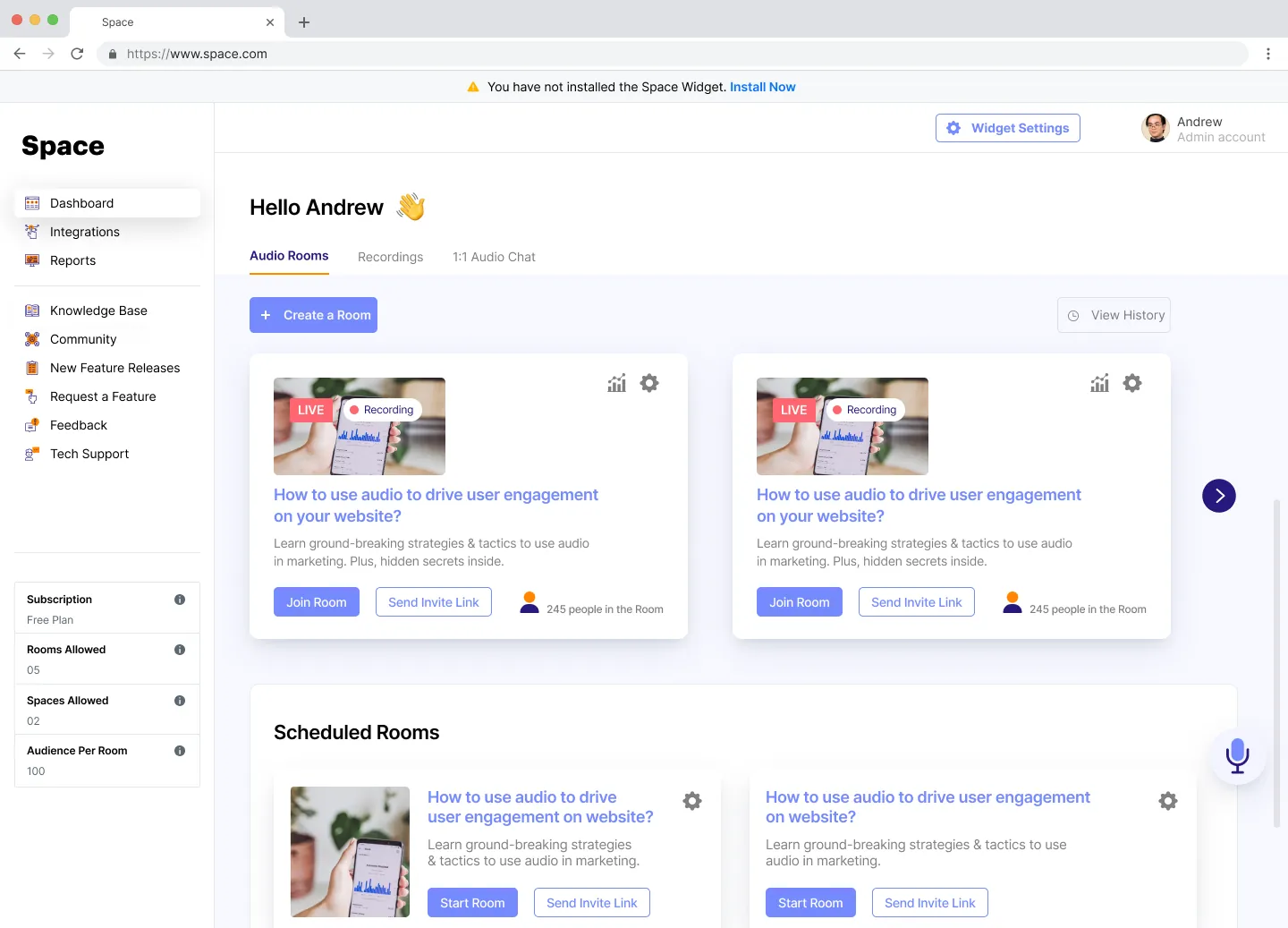
Space dashboard greeting 'Hello Andrew', with live audio rooms at the top showing LIVE and Recording badges, Join Room and Send Invite Link buttons, and scheduled rooms below.
+18.1%
increase in monthly recurring revenue for Space
2
kinds of user: admins who set Space up, and team members who take the calls
3
ways to talk to customers: live rooms, 1:1 audio chat and recordings

The brief

One place to run every audio conversation.

The widget only works if the people behind it can set it up and run it without help. Space needed a web app that takes a company from sign-up to its first live room, then gives the team what it needs during and after every conversation.

It is used by two kinds of people. Admins, often founders, marketers or product leads, install the widget, style it, schedule rooms and invite the team. Team members in sales and support answer customers who call in from the website, with the customer’s details beside the call.

The web app covers four jobs:

01

Get set up

Create an account, install the widget with one snippet and switch features on.

02

Run live rooms

Schedule a room, host it, bring listeners on stage and answer questions.

03

Talk 1:1

Answer customers waiting on the website and pull in a teammate when needed.

04

Learn from it

See who registered, who joined and when, and keep recordings in one place.

Sign up and install
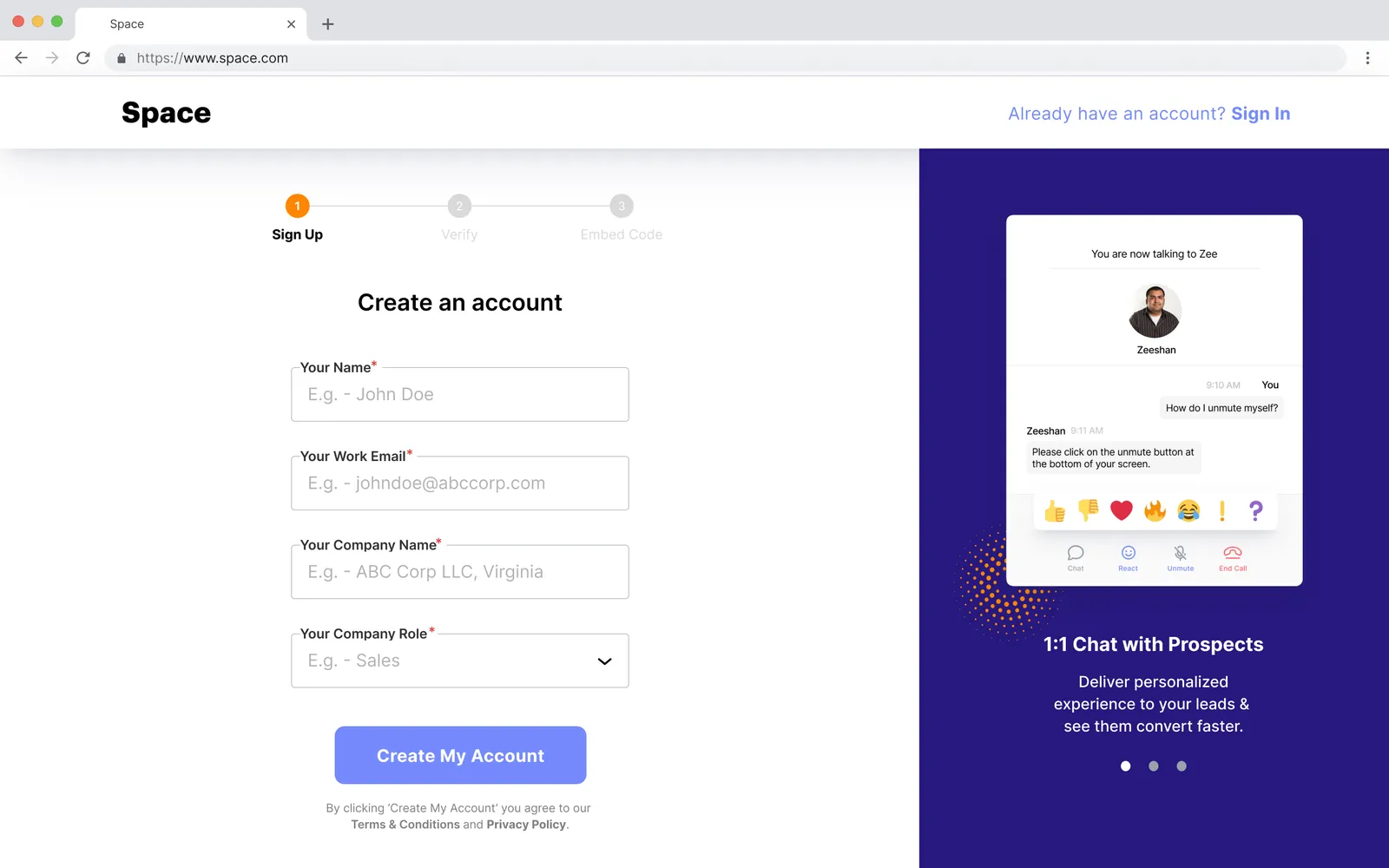
From sign-up to installed in a few steps.

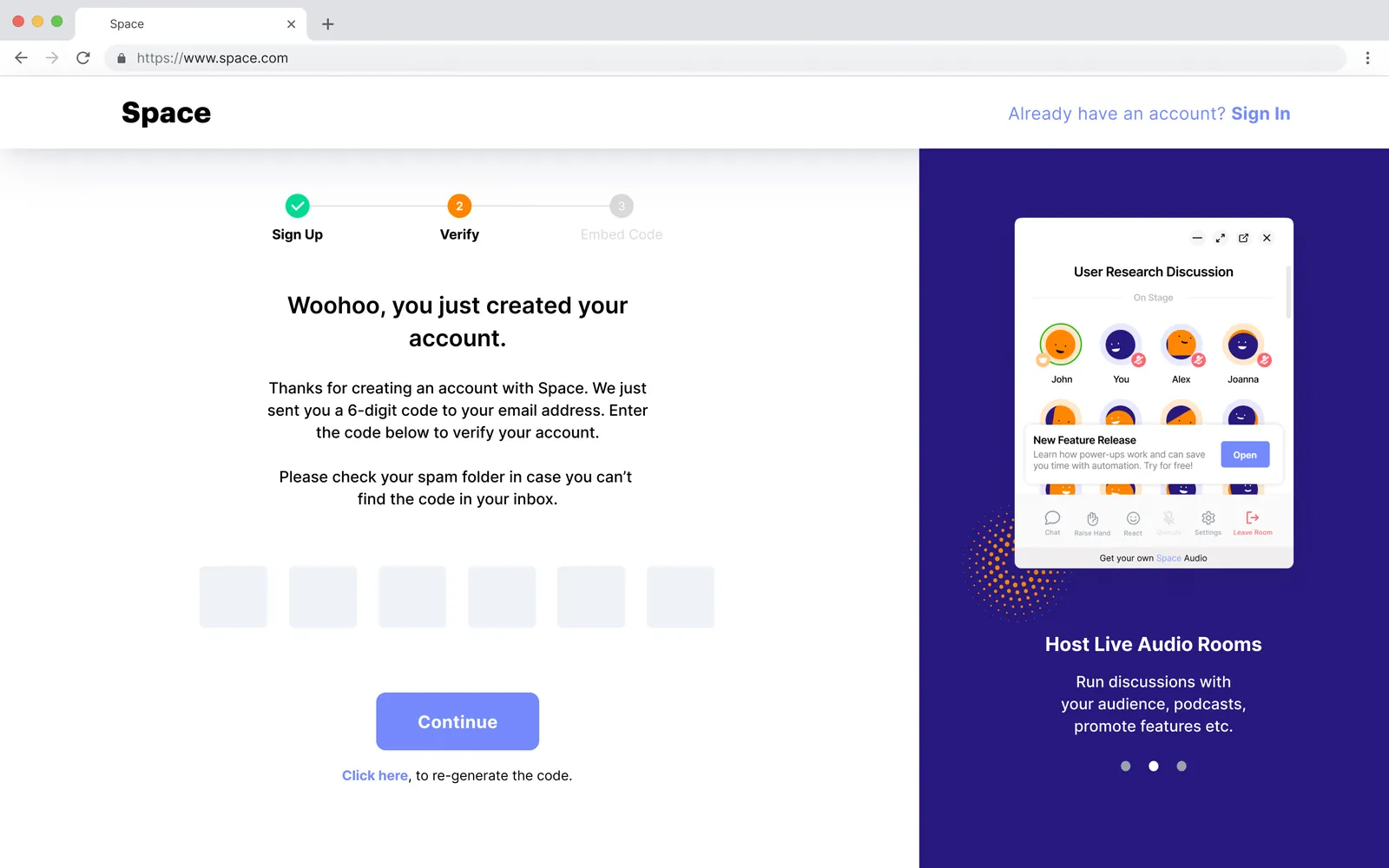
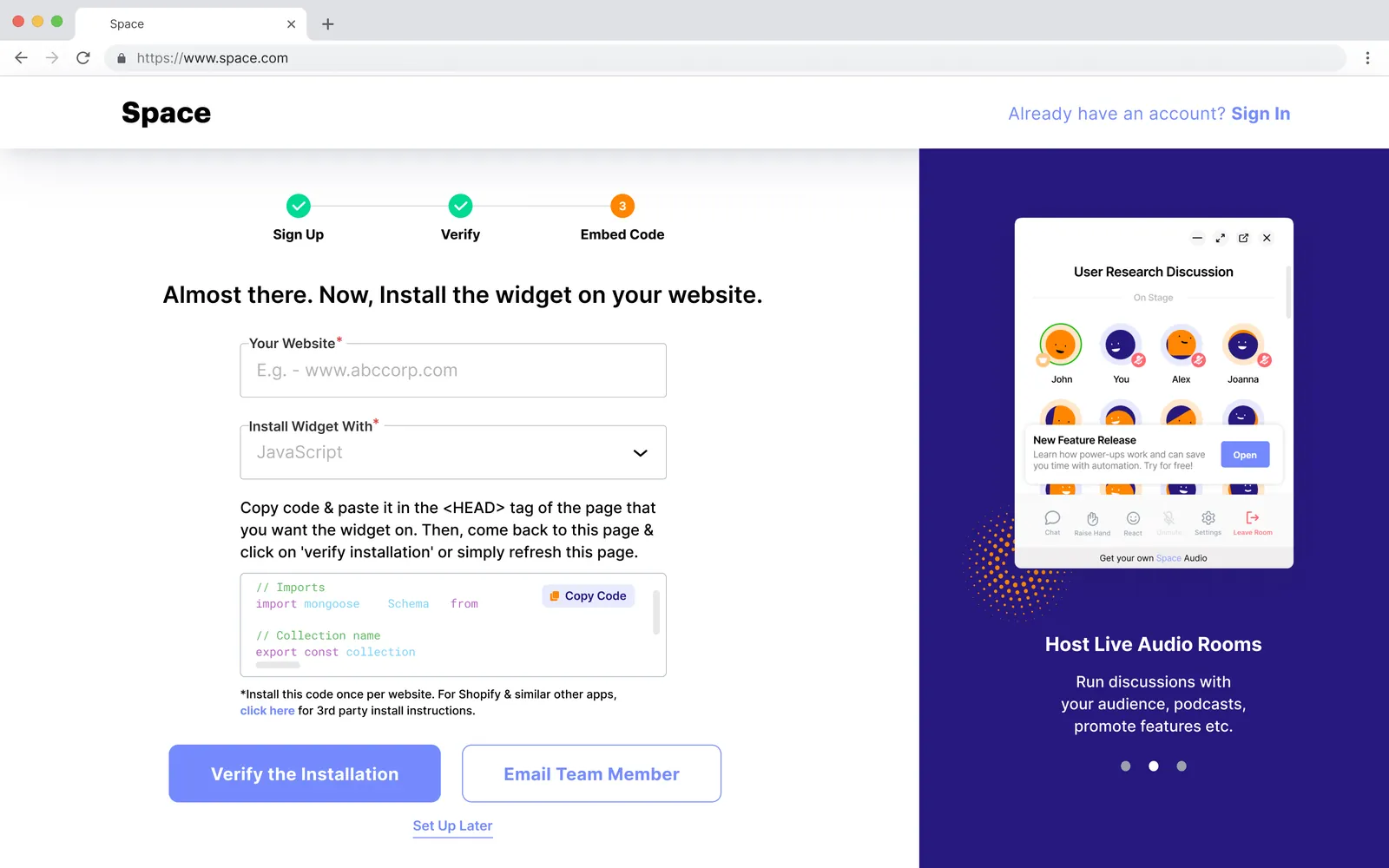
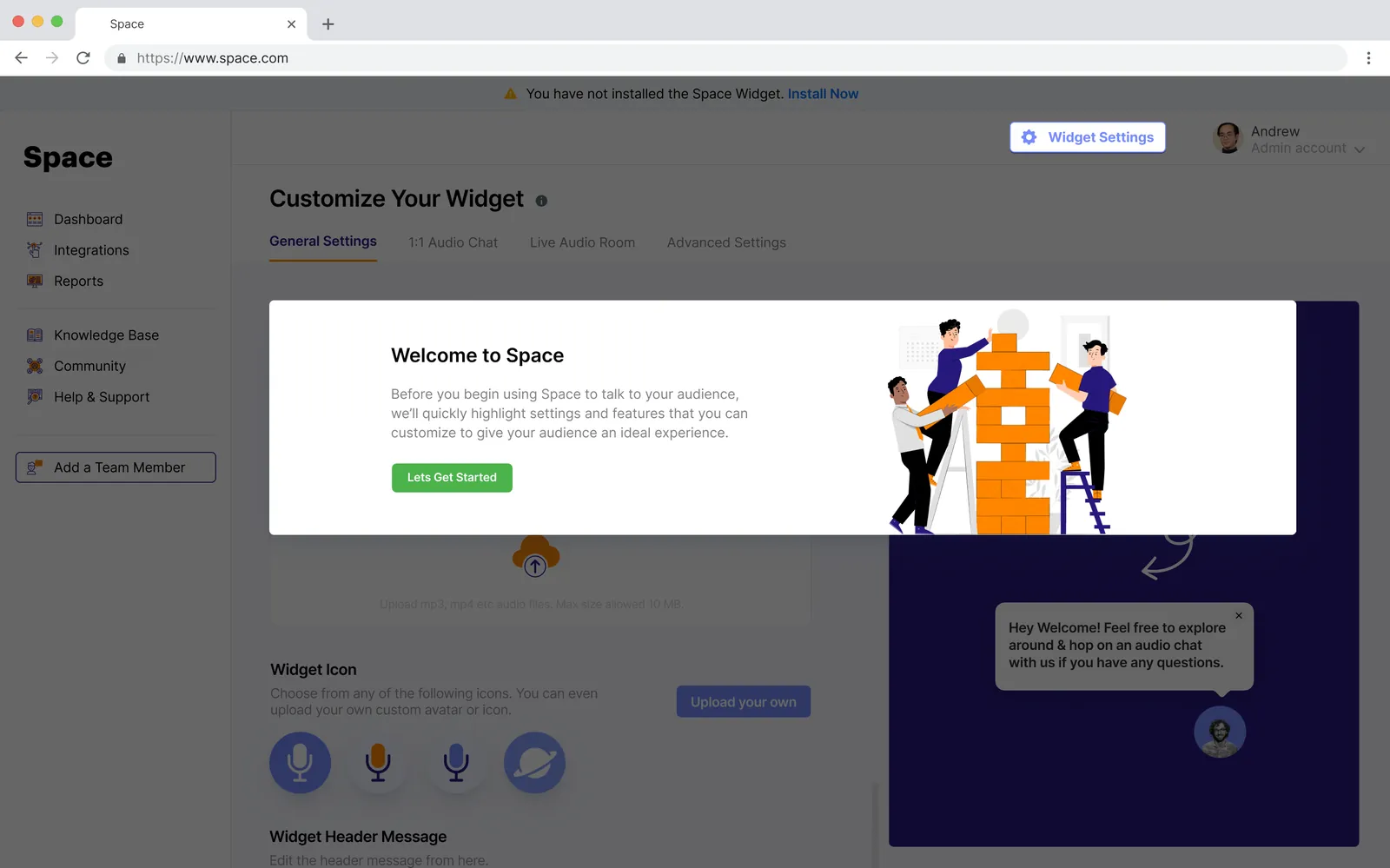
Create an account form asking for name, work email, company name and company role, beside a purple panel previewing a 1:1 chat with prospects. Verify step: Embed Code step: website and platform fields, a code snippet with Copy Code, and buttons to Verify the Installation or Email Team Member. Welcome to Space tour card over the widget settings page, with a Let’s Get Started button.

The dashboard

Always clear what to do next.

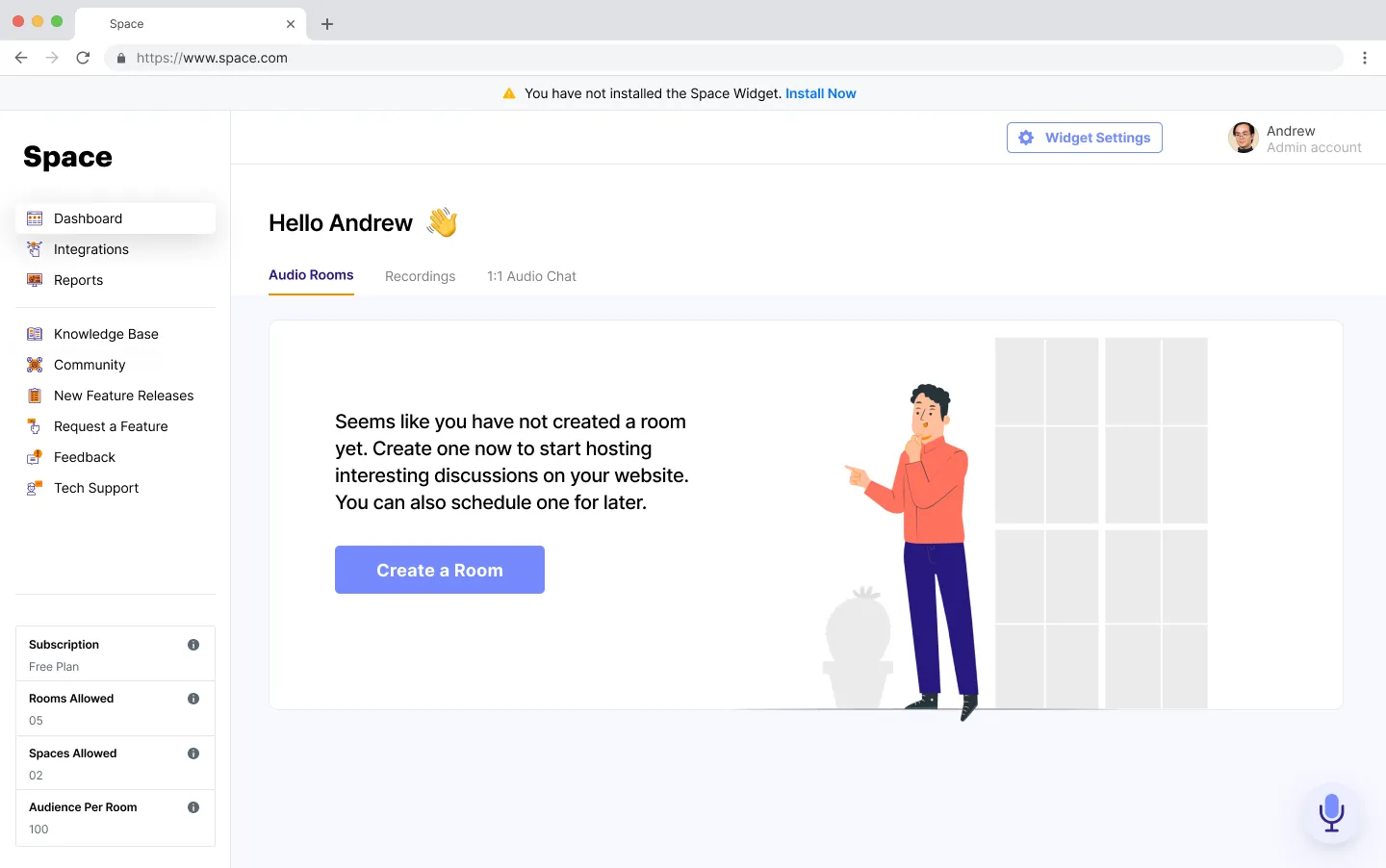
Empty dashboard reading Dashboard with live rooms showing LIVE and Recording badges, Join Room and Send Invite Link, and a grid of scheduled rooms with Start Room buttons.

Creating an audio room

Simple by default, detailed when needed.

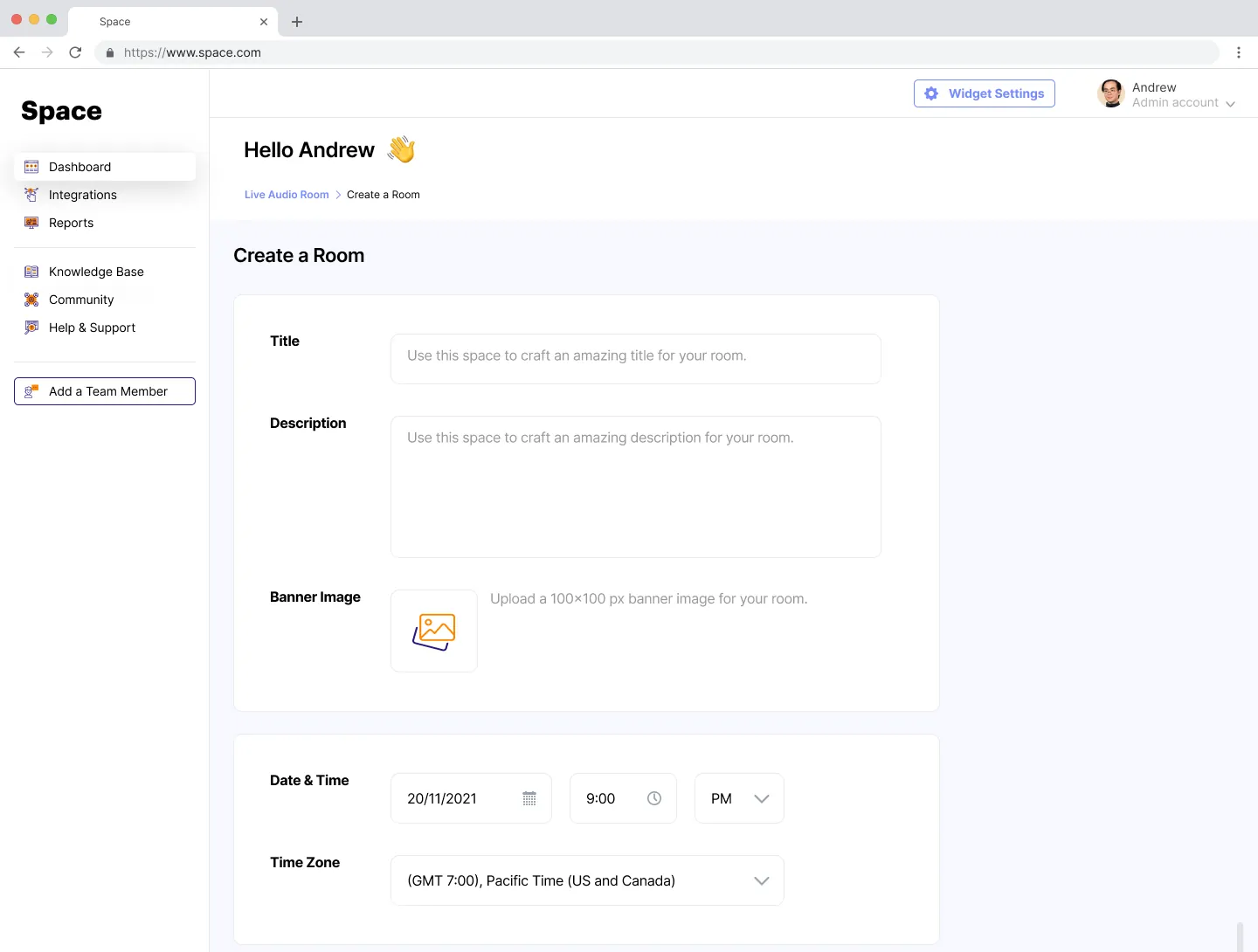
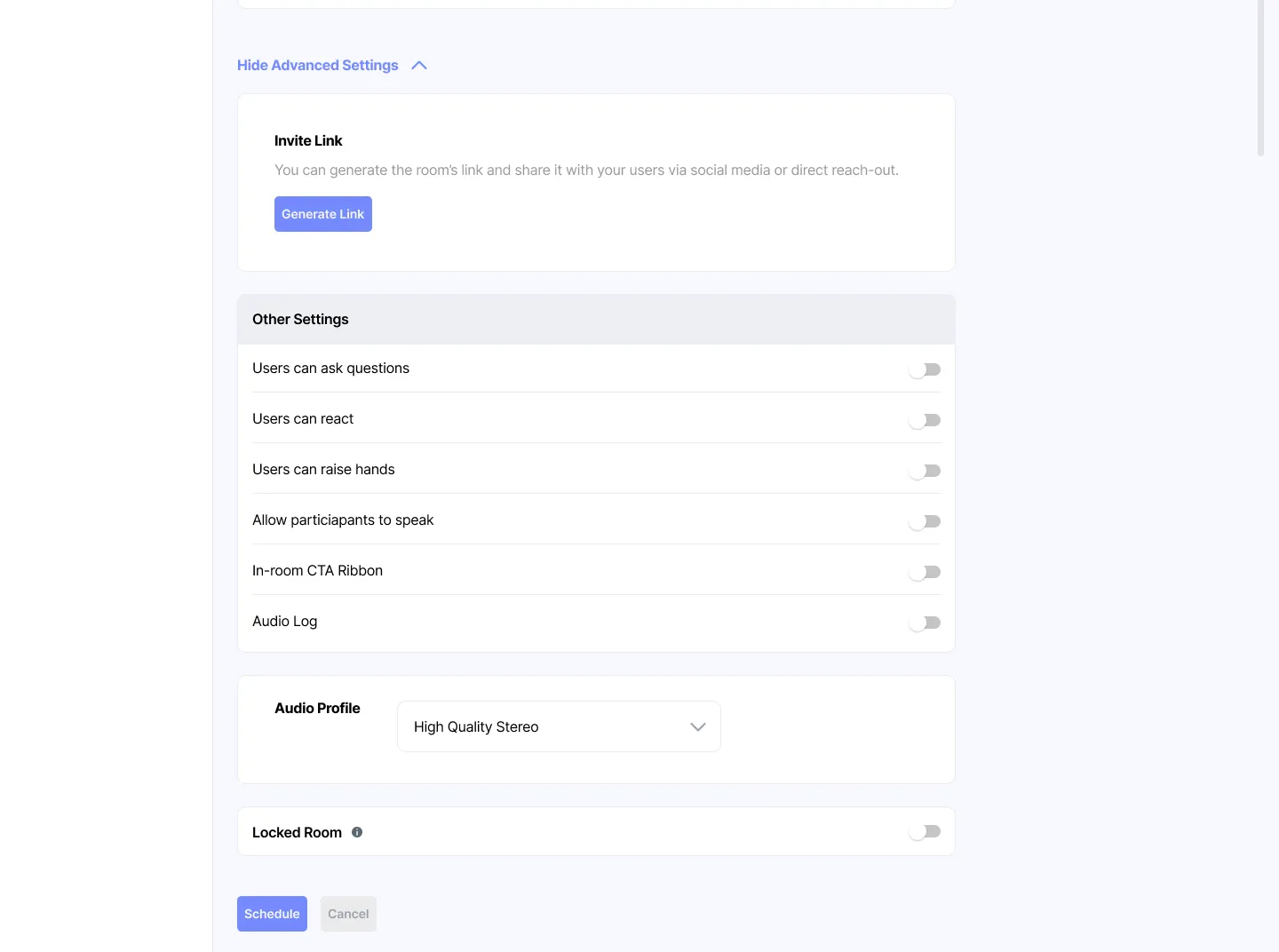
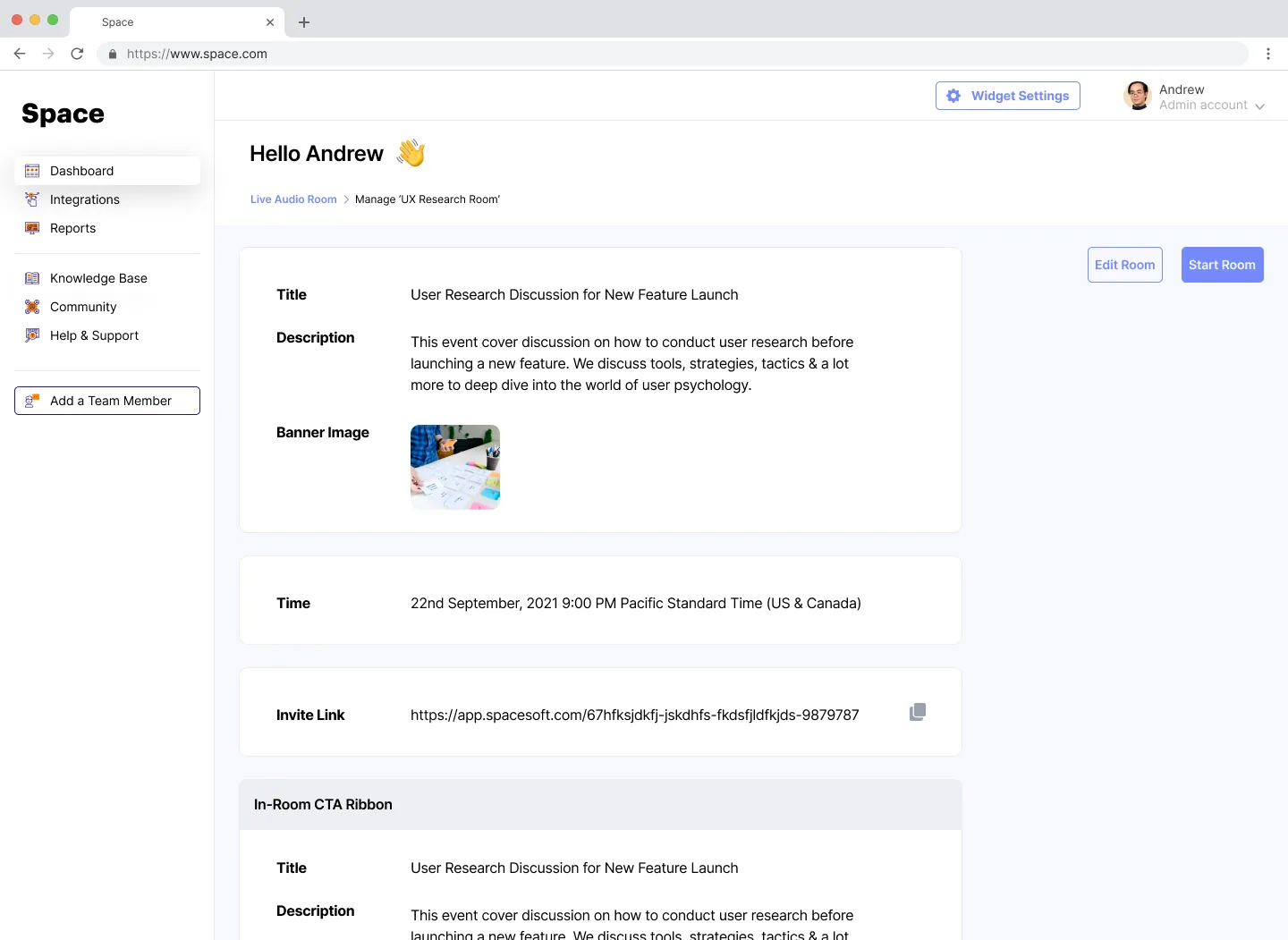
Create a Room form with title, description, banner image, date, time and time zone fields. Advanced settings with Generate Link for the invite link, toggles for questions, reactions, raising hands, participants speaking, CTA ribbon and audio log, an audio profile menu and a Locked Room toggle. Manage room page summarising the room title, description, time, invite link, CTA ribbon, enabled settings, audio profile and locked-room code, with Edit Room and Start Room buttons.

Hosting a live room

Everything the host needs, on one screen.

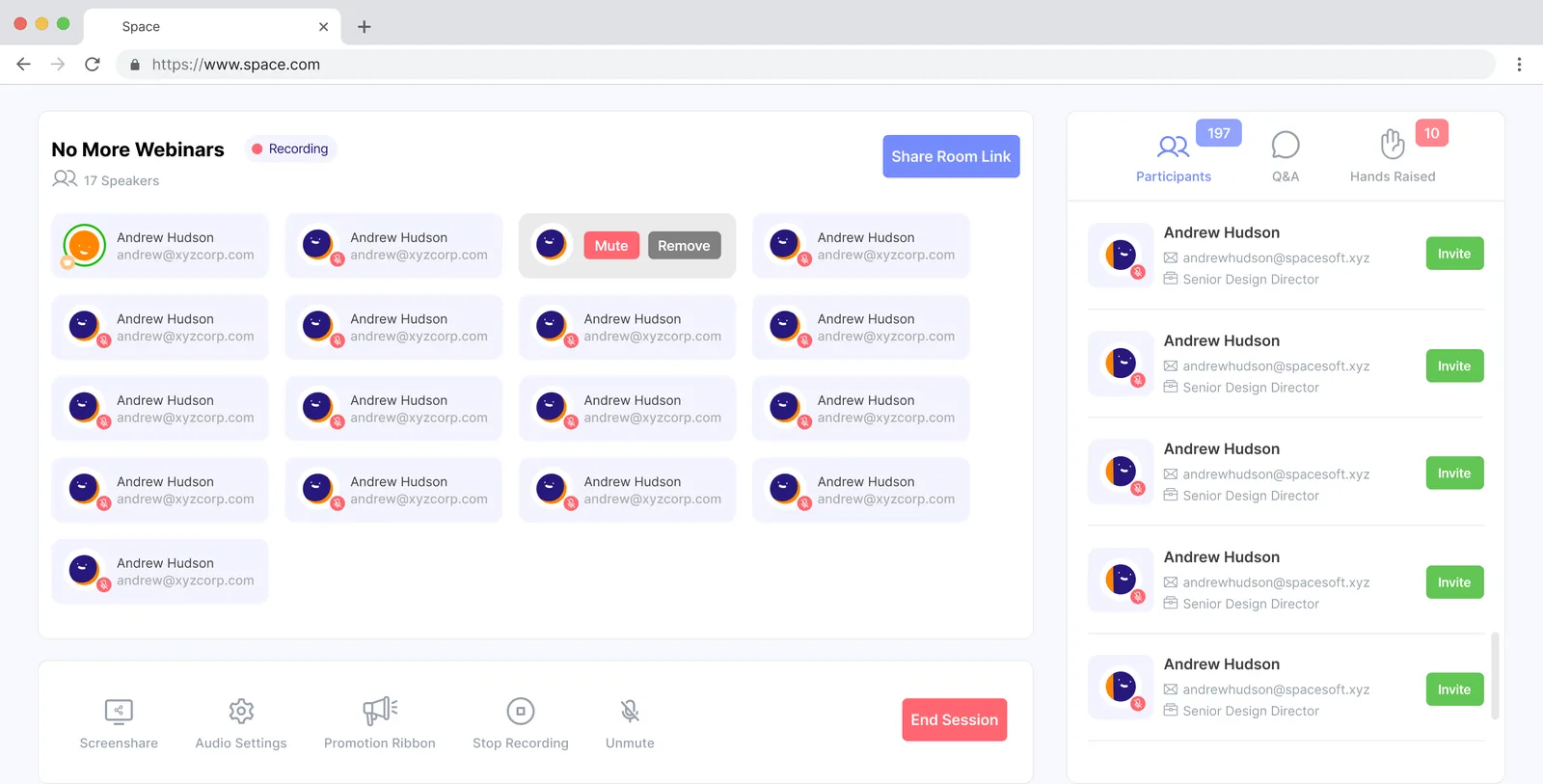
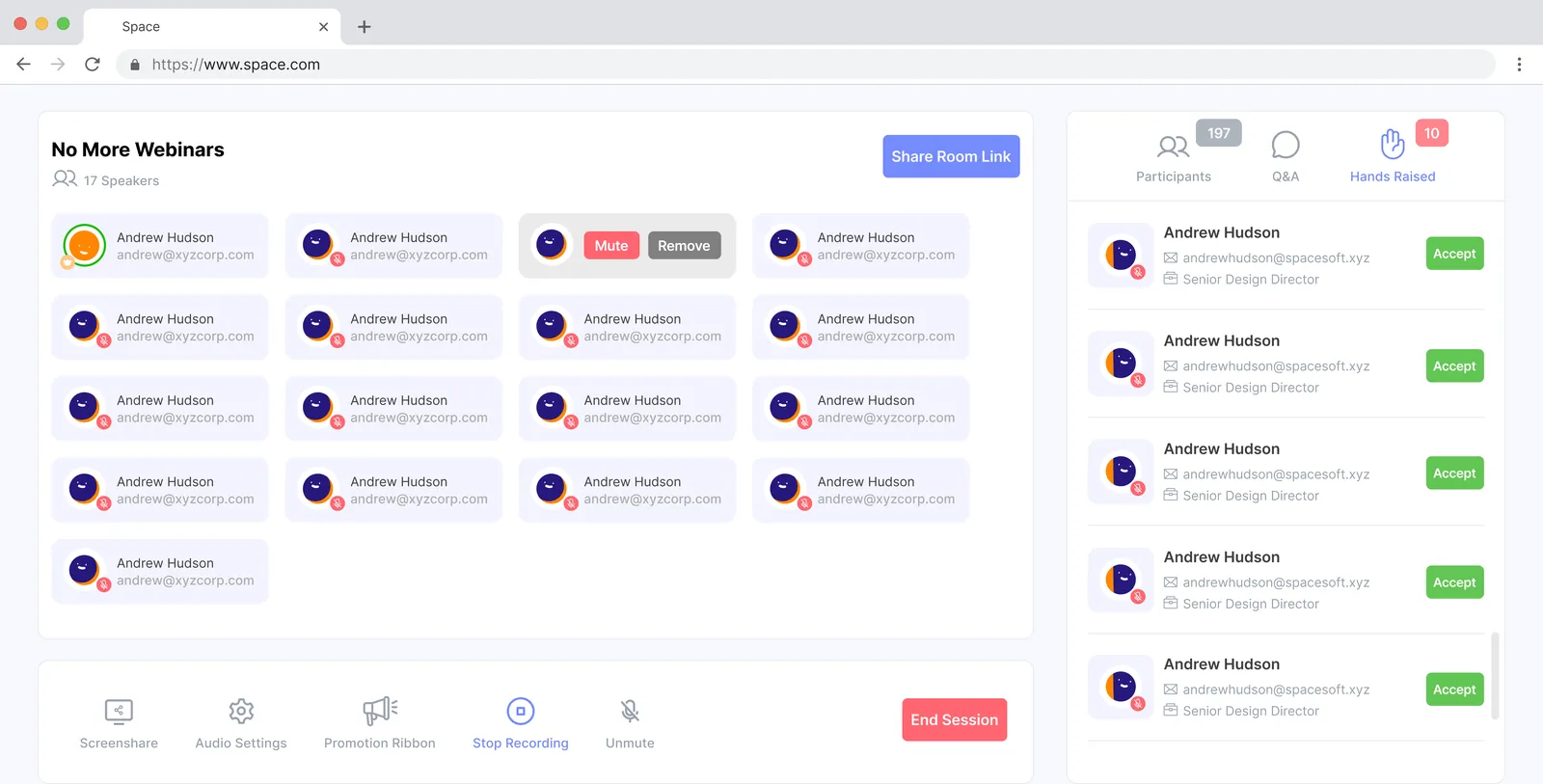
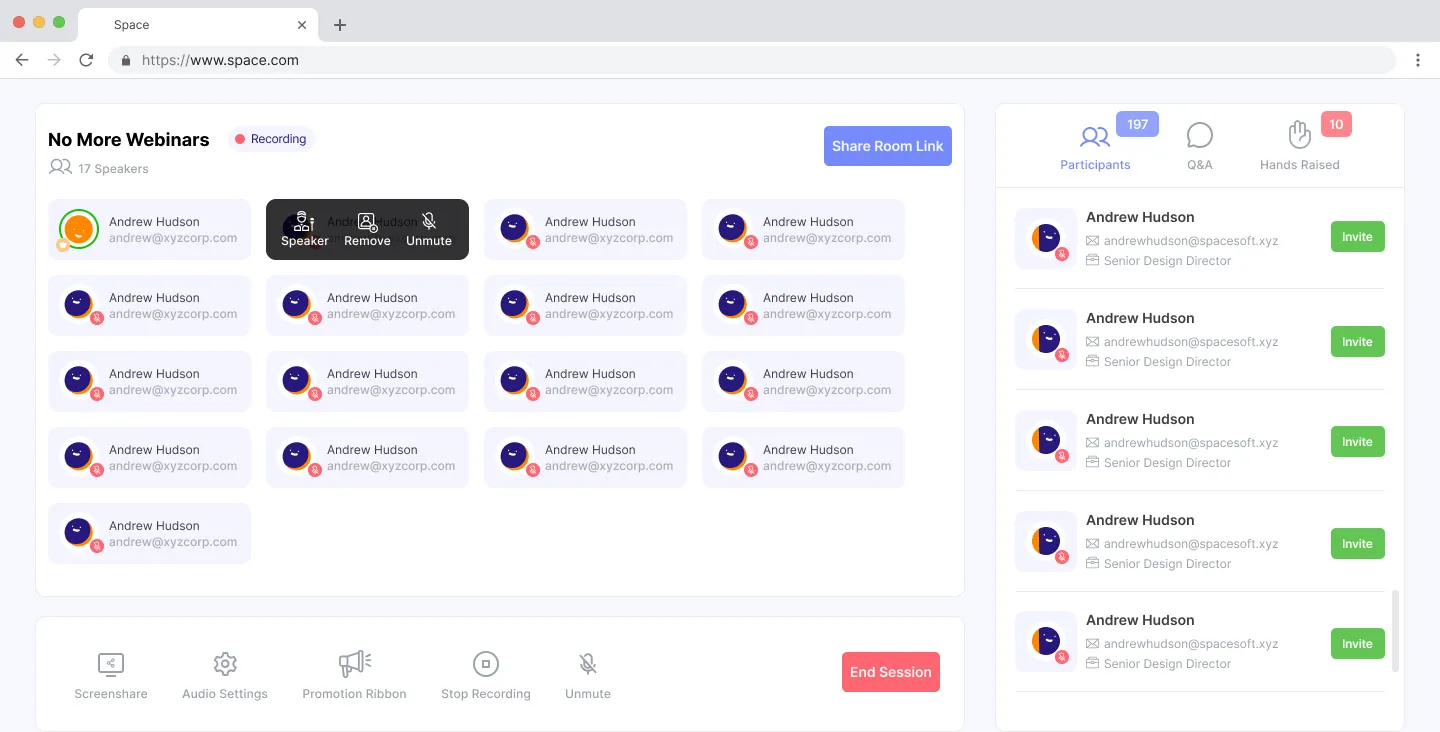
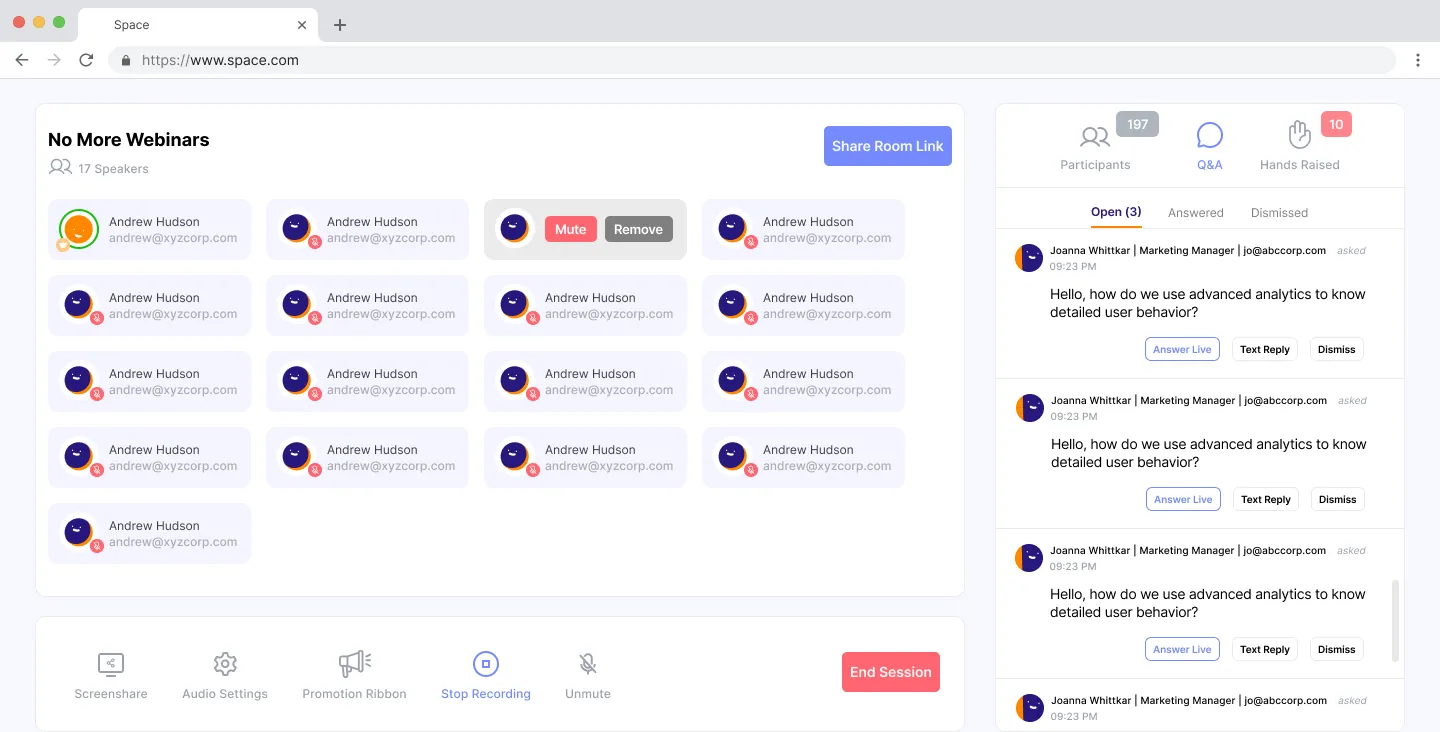
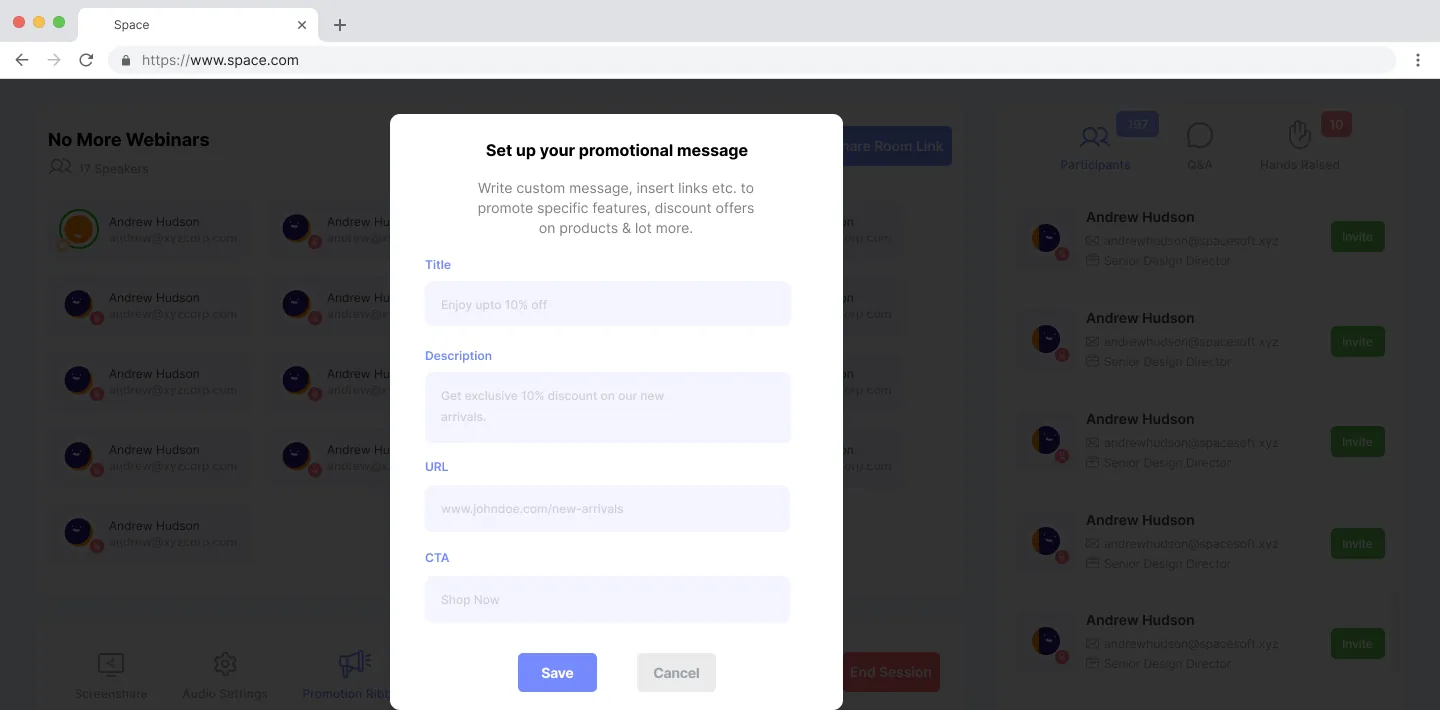
Live room Hands Raised tab listing participants with green Accept buttons, next to the speaker grid. A speaker card showing hover options for Speaker, Remove and Unmute. Q&A tab with open questions, each with Answer Live, Text Reply and Dismiss options. Set up your promotional message dialog with title, description, URL and call-to-action fields.

1:1 audio chat for the team

Customers call in. The team is ready.

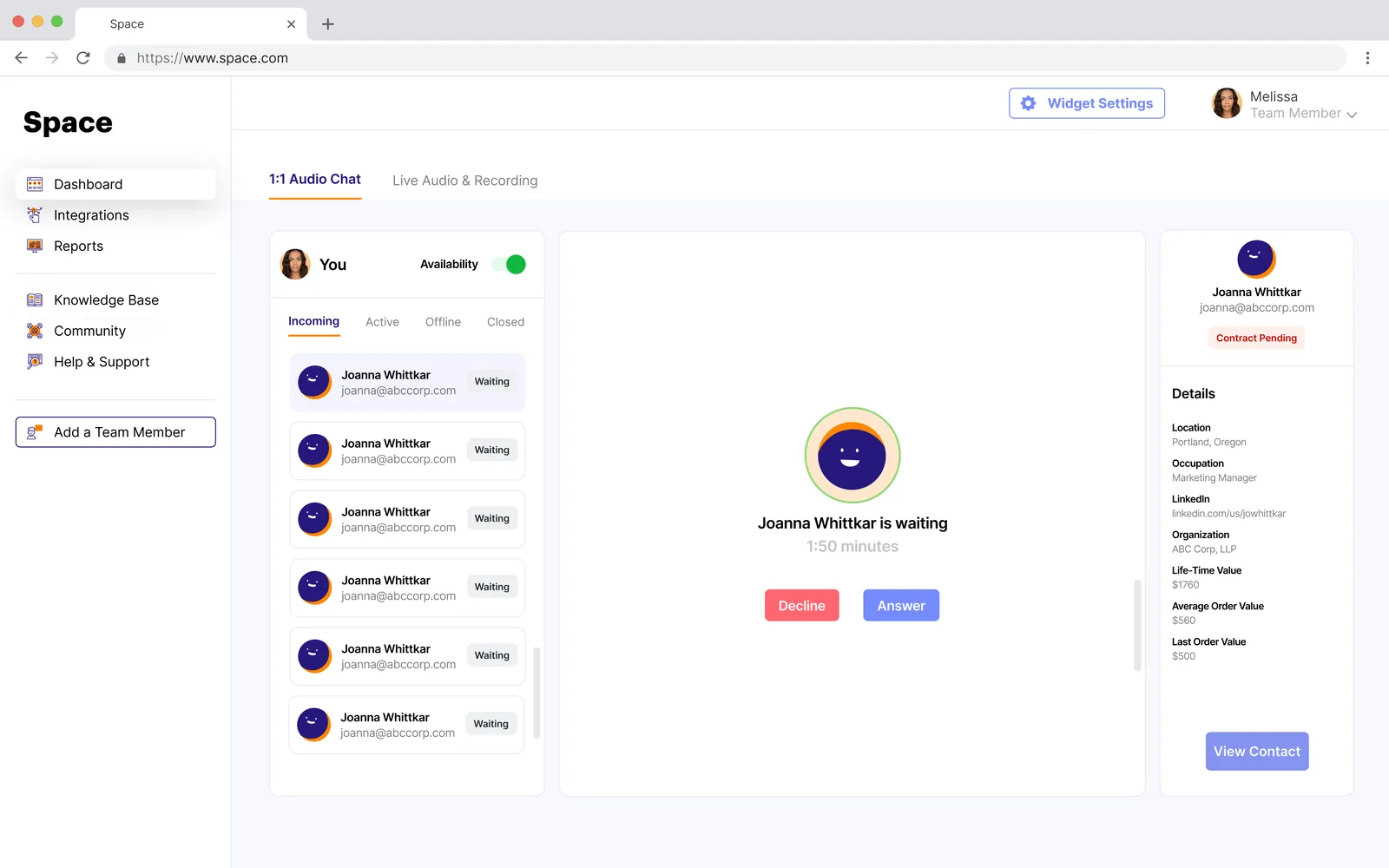
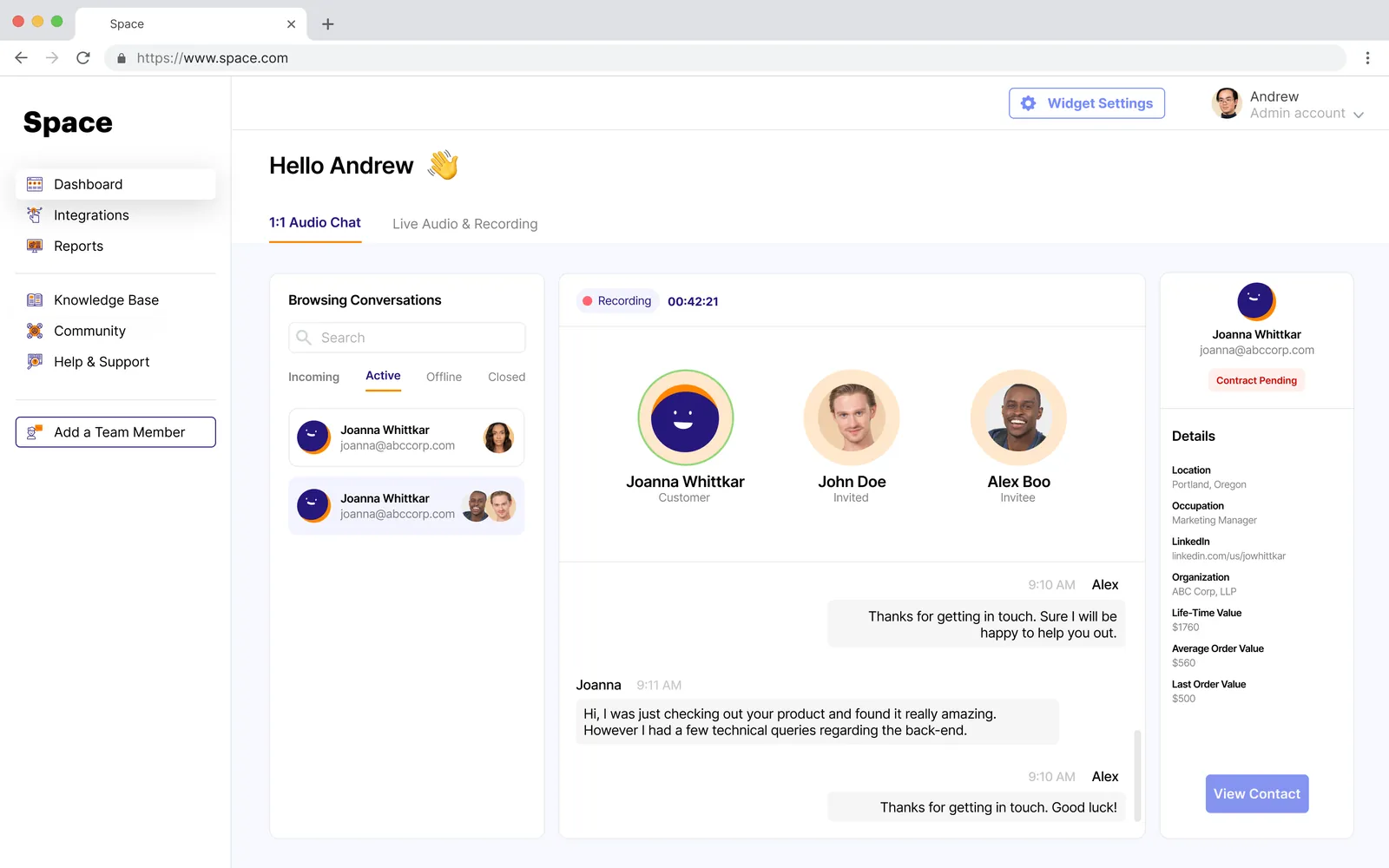
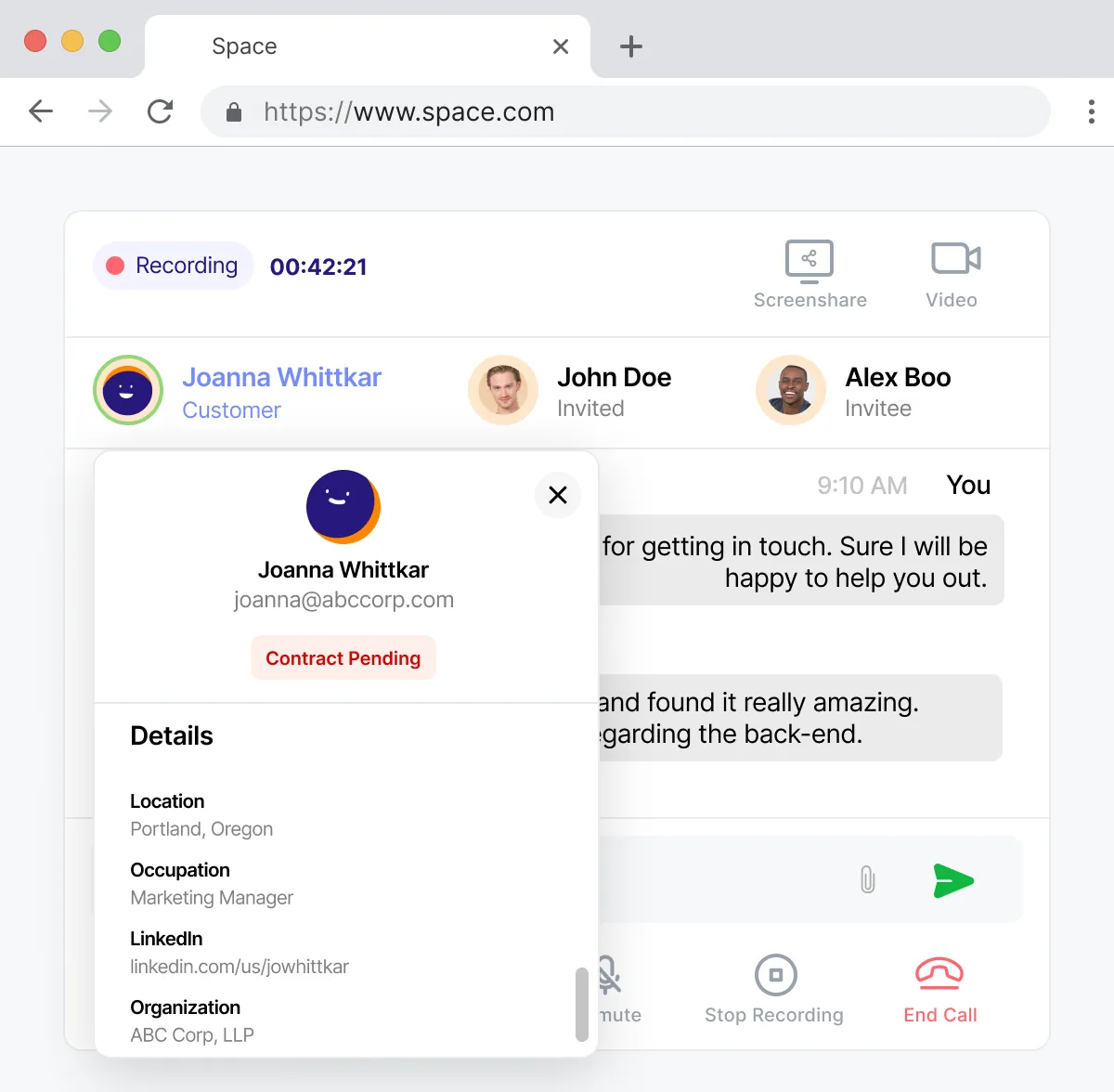
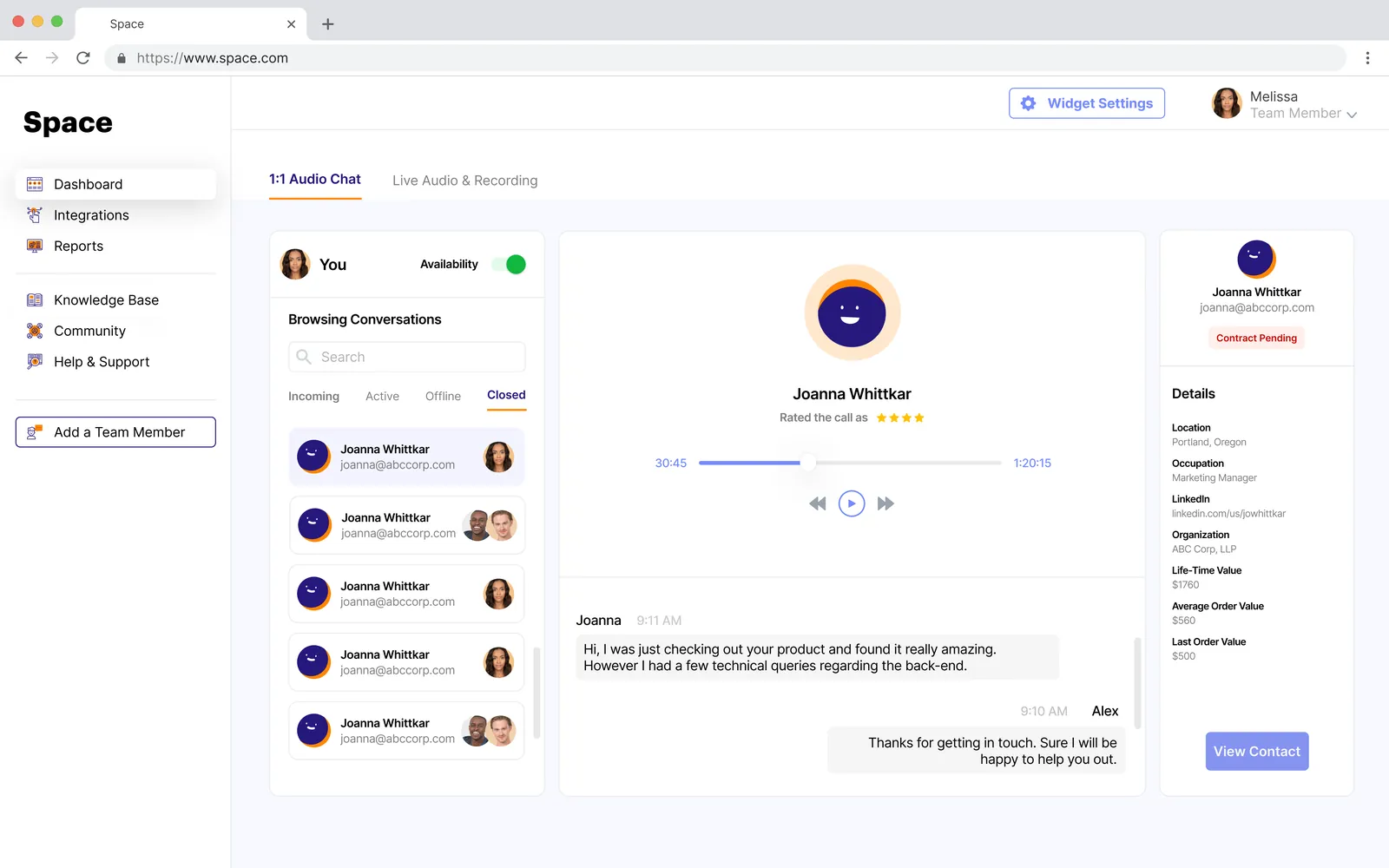
Team member console with a list of waiting customers, Active call with the customer and two invited teammates, with the chat history below. Pop-out call window with three participants, chat, and an open customer details card. Closed conversation showing an audio player with the call recording, a star rating and the chat transcript.

Settings

Change it here, see it there.

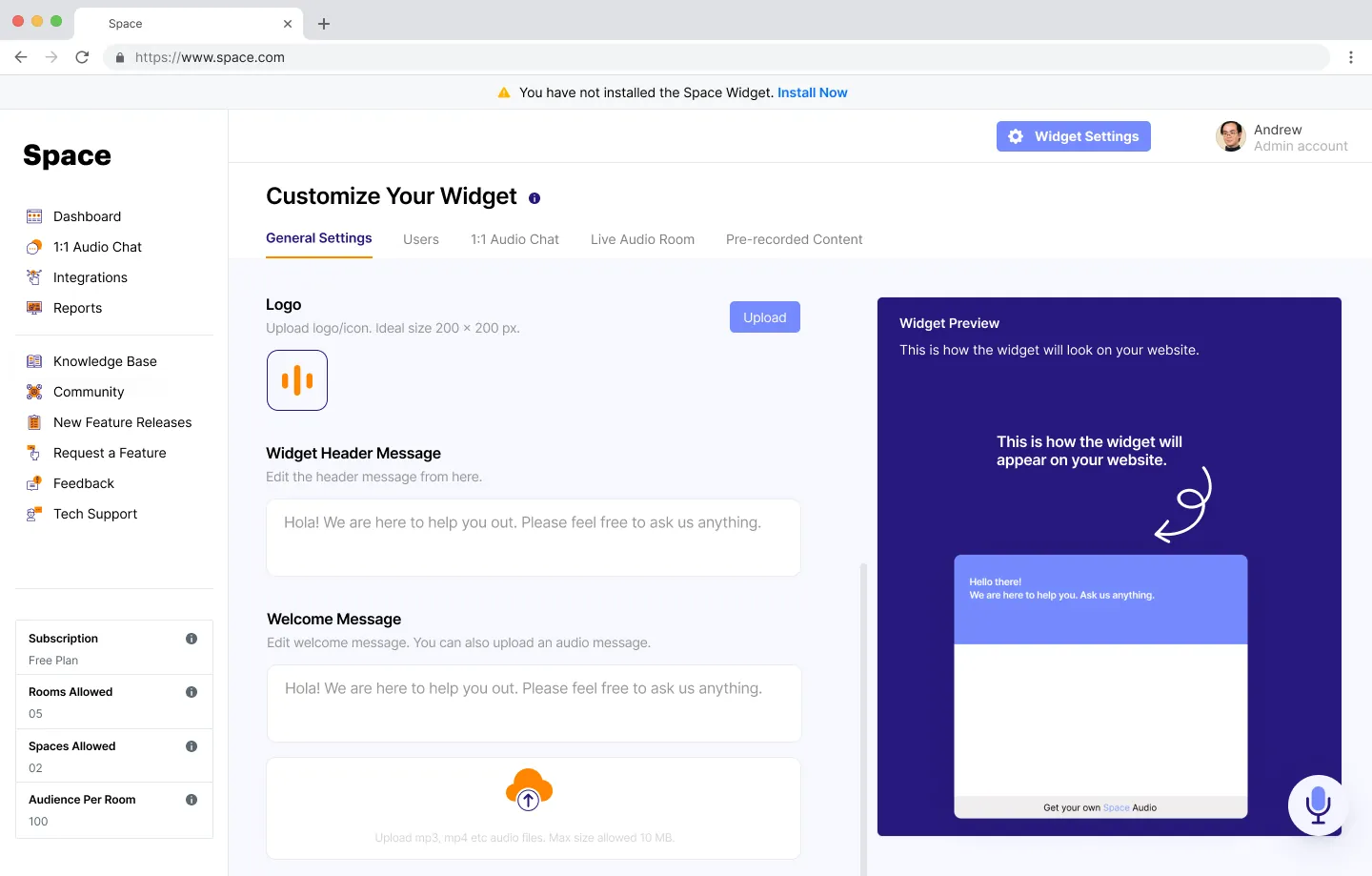
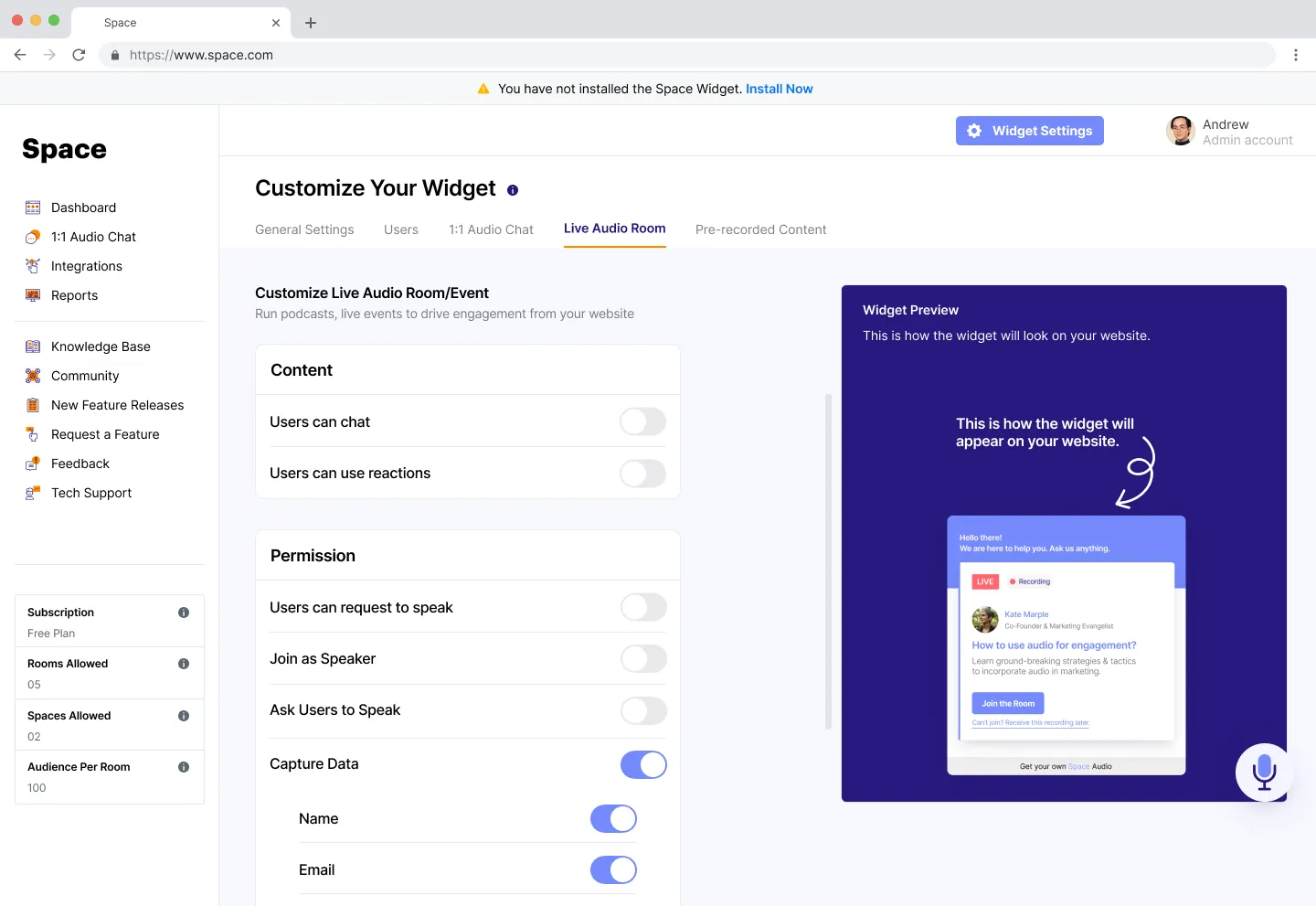
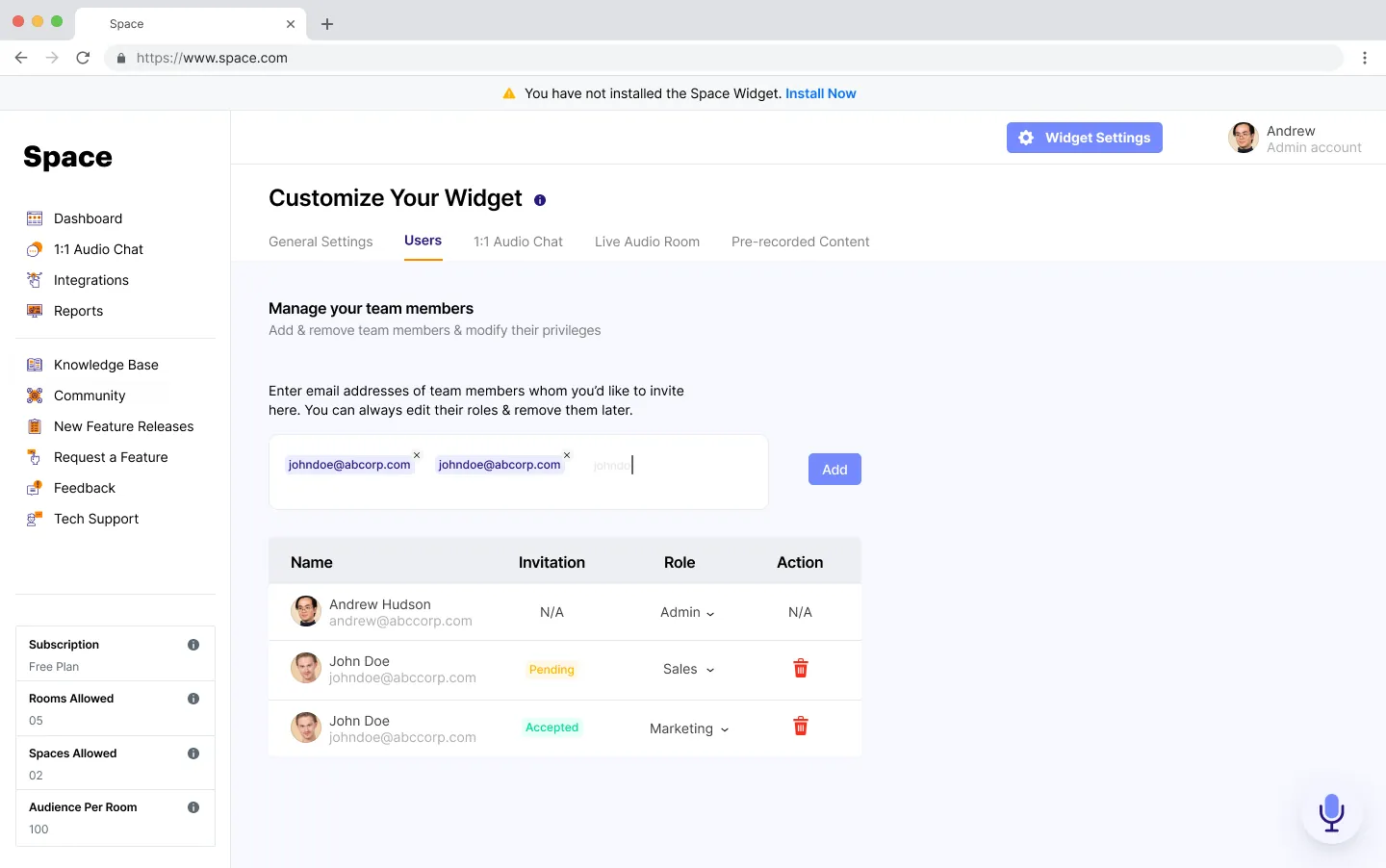
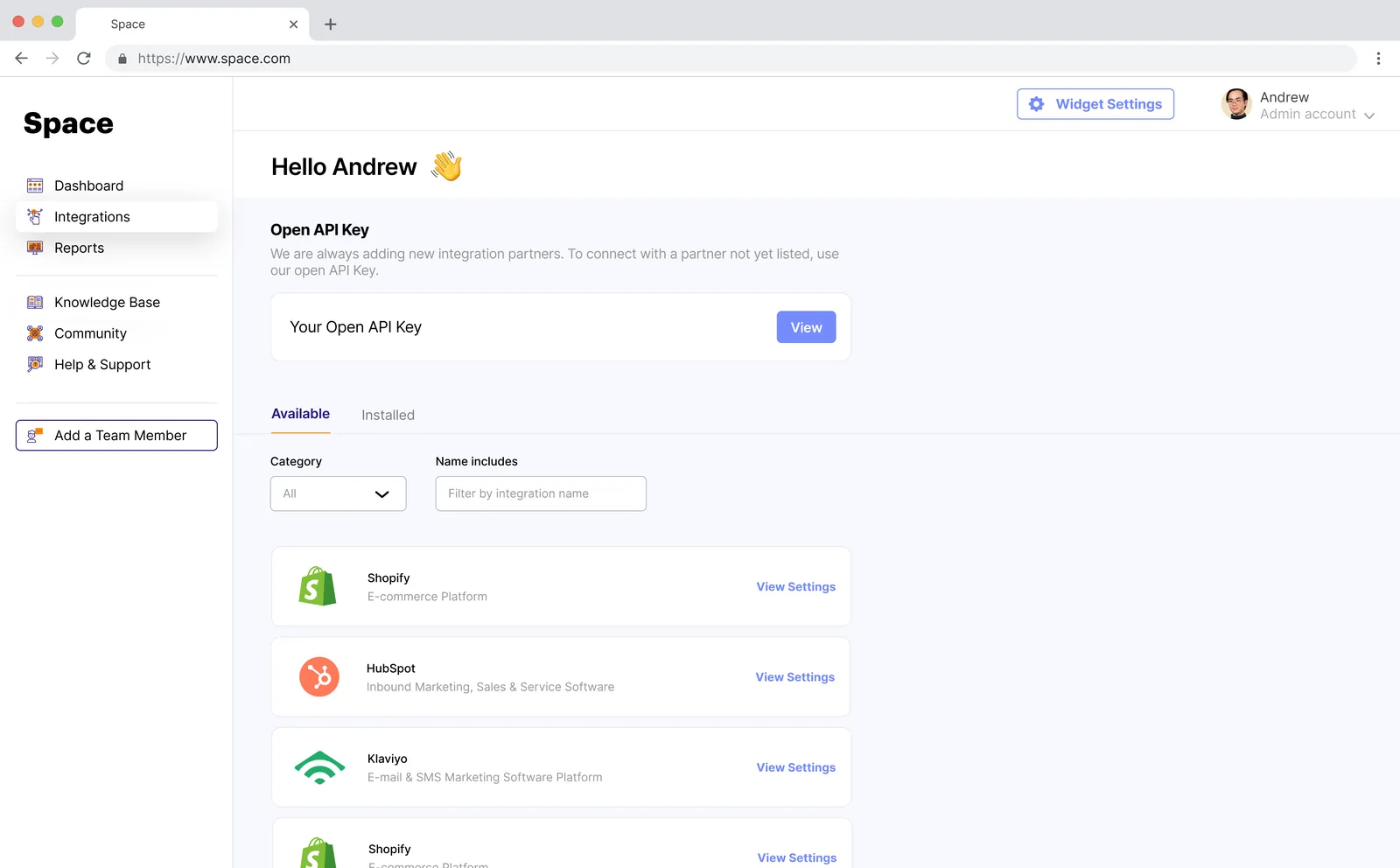
Customize Your Widget page with logo, header message, welcome message and brand colour fields beside a live widget preview. Live Audio Room settings with toggles for chat, reactions, speaking permissions and capturing name, email and phone number, beside a widget preview. Users tab with emails being added and a table of team members with invitation status and roles. Integrations page with an Open API Key field and a list of integrations including Shopify, HubSpot and Klaviyo.

Analytics

After the room ends, the insight begins.

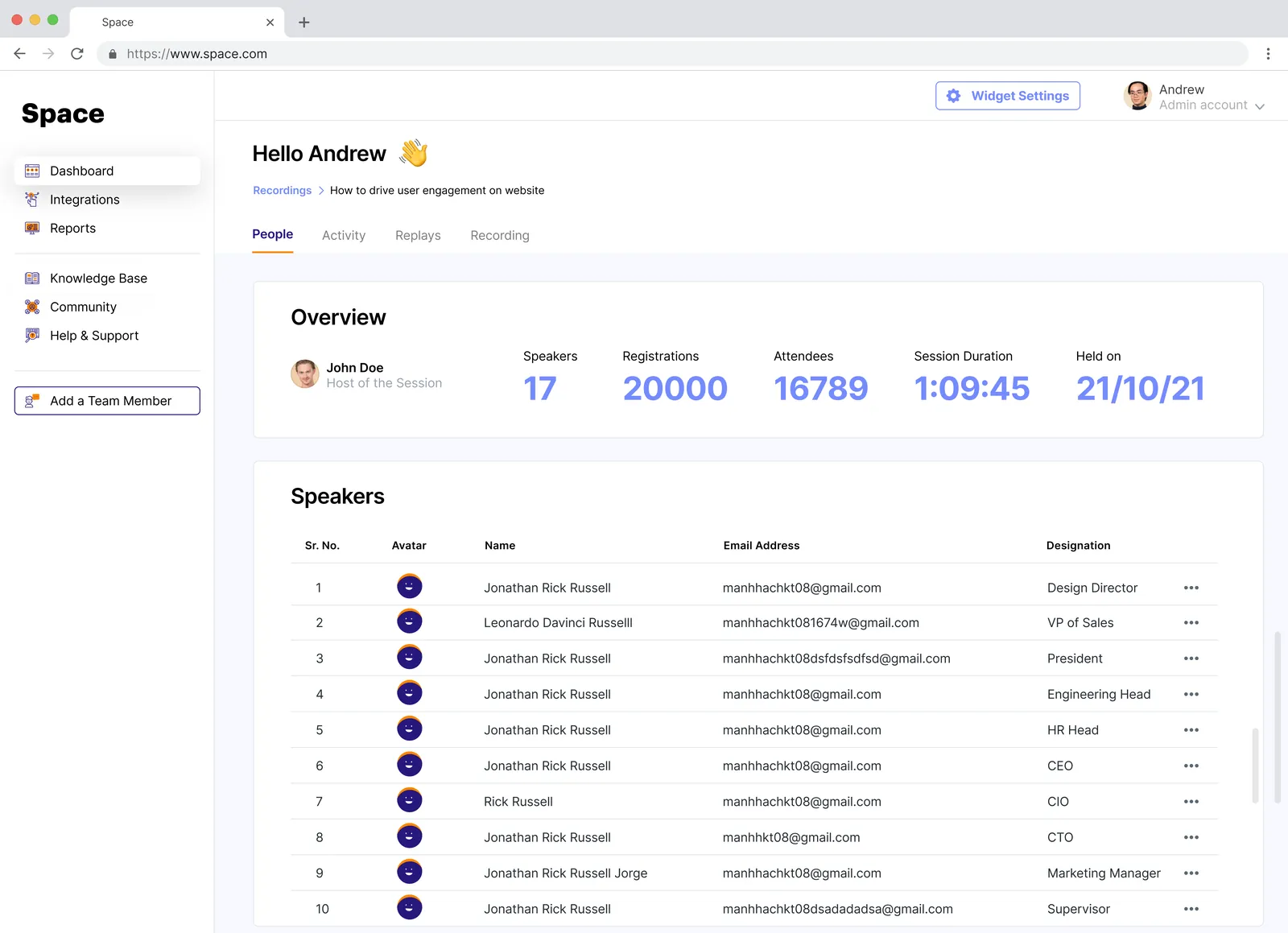
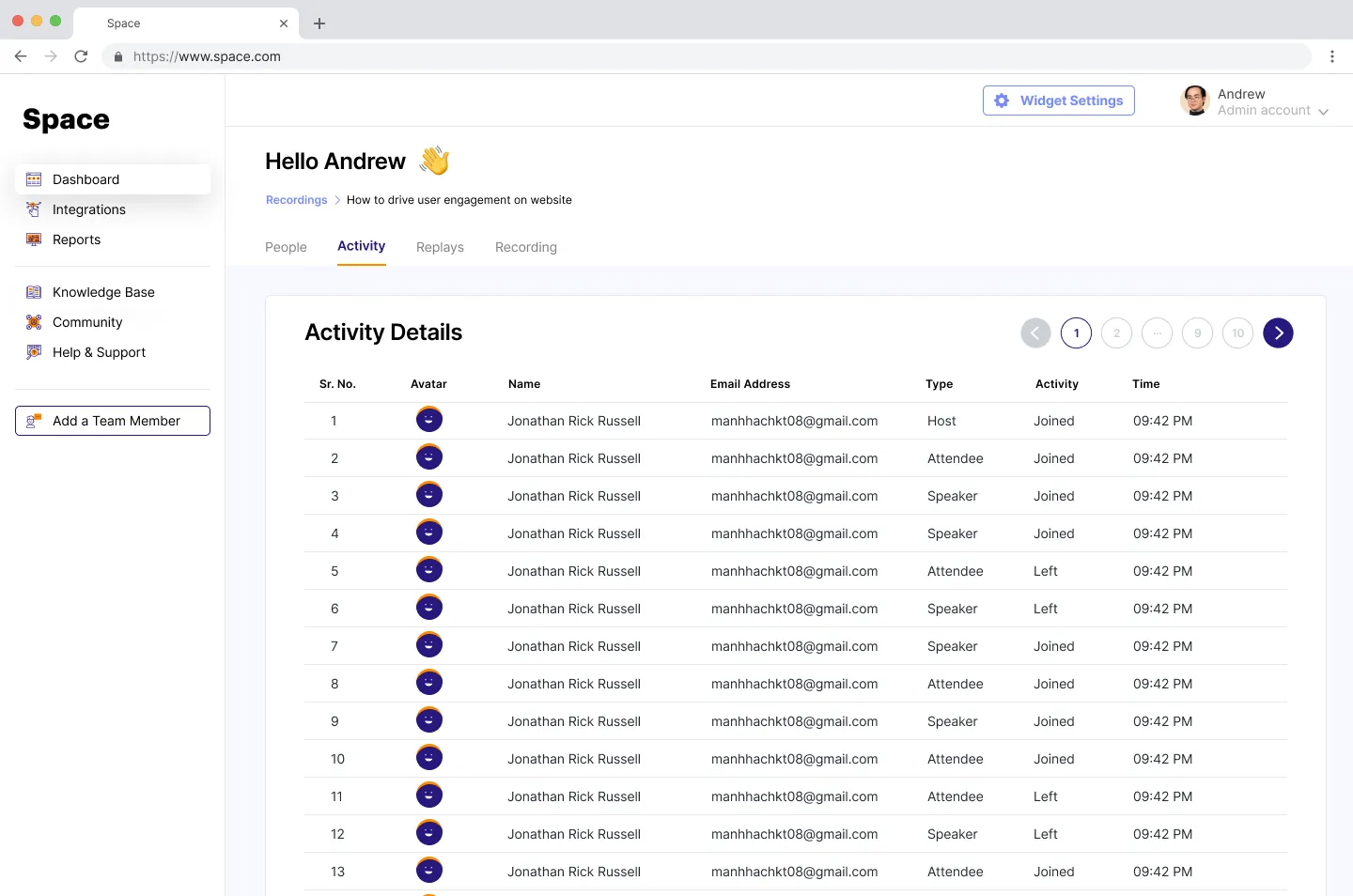
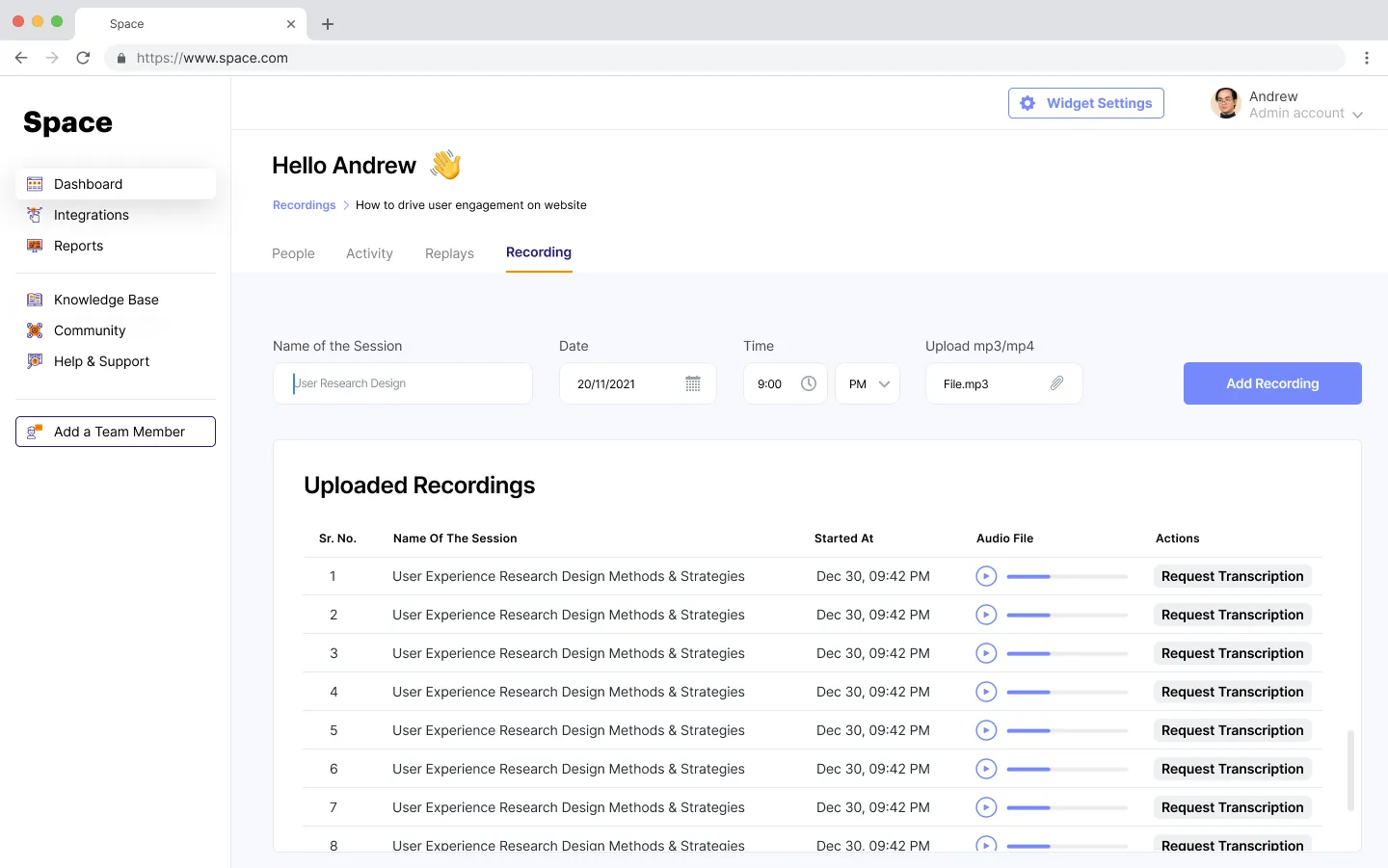
Room overview with speakers, registrations, attendees, session duration and date, above tables of speakers and attendees. Activity Details table listing each person, their type (host, speaker or attendee), whether they joined or left, and the time. Recording tab with fields to add a recording and a list of uploaded recordings with audio players and Request Transcription buttons.

Design decisions

Powerful for the team, calm to use.

Show the result while you set it up

Every widget setting has a live preview beside it, so admins see what visitors will see before they save.

Simple first, advanced on request

A room needs only a title and a time. Permissions, ribbons, audio quality and locked rooms stay under “Advanced settings”.

The customer beside the conversation

In 1:1 calls, the customer’s role, company and order history sit next to the call, so sales and support never go in cold.

No dead ends

Empty dashboards, recordings and chats each explain what goes there and offer the one action that fills them.

Building a product people talk about?

Let’s design the experience around the conversation.